Learn how to calculate age, anniversaries and milestone birthdays based on date of birth and date of employment
The challenge
For an HR report we only know the day of birth and the hire date for the employee, but we would like to show the upcoming milestone birthdays and anniversaries.
We need to calculate their age, and create filters to show the upcoming birthdays/anniversaries 1 year in advance

The solution
If you don’t already have a date table, first create one by following this guide
Data
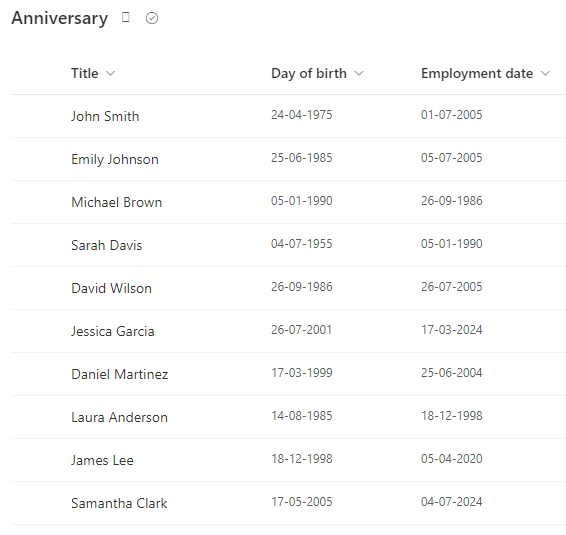
For this example we will create a simple SharePoint list with
- Name of employee
- Day of birth
- Employment date
My list looks like this
Age
When you have added your SharePoint list to Power BI, remove all other columns, than the 3 above, and change the two date fields to date
Your query should now look like this

Step 1
Select your day of birth column, and select date -> Age

Step 2
Select your new column and click duration -> Total years

Step 3
Right click your column and select Transform -> Round -> Round down

You can now remove the Age column that we used for the duration calculation, so that our query now look like this

Seniority
To calculate how many years an employee has been working for the company you can follow the exact same steps as above just with the employment date column.

Next birthday and seniority date
To show the user of the report when the employee has their next anniversary or milestone birthday add a new custom column
Next birthday

Formula
Date.AddYears([Dayofbirth], [Age] + 1)
Next seniority date
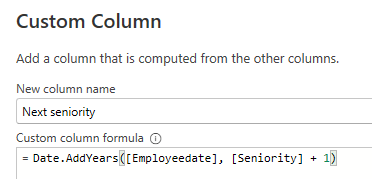
Formula
Date.AddYears([Employeedate], [Seniority] + 1)
Don’t forget to change the type of the columns to date
Your query should now look like this, and we are ready to start building our report

The report (and some DAX)
Before you continue, don’t forget to connect your date table to your employees table
Step 1
Create a new table visual and insert
- Name of employee
- Day of birth
- Age
- Employee date
- Seniority

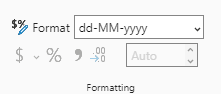
If you want to format the date as in my table above, simply change the format of the date columns to dd-MM-yyyy
Step 2
The table will show you all the employees, so now we need add measures that will filter the table for us.
Create a new measure with the following code
Anniversaries = SUMX(
    FILTER(
        Anniversary,
        Anniversary[Seniority] IN {19, 29, 39, 49, 59, 69, 79, 89, 99}
    ),
    Anniversary[Seniority] + 1
)
And another measure with the following code
Milestone birthday = SUMX(
    FILTER(
        Anniversary,
        Anniversary[Age] IN {19, 29, 39, 49, 59, 69, 79, 89, 99}
    ),
    Anniversary[Age] + 1
)
This code will show us all employees who has a milestone within the next year (with a 10 year interval) but will return the visual with 1 “year” added
Step 3
Now we could just add the next birthday and next anniversary date, but that will show the date in all rows
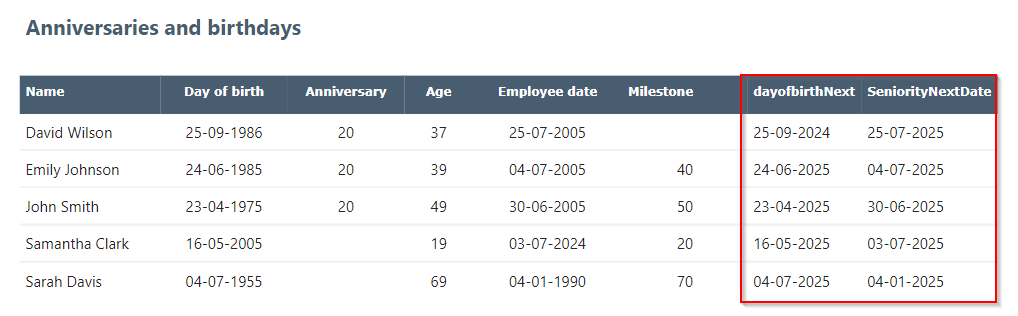
To avoid that we will create two new measures, that returns a blank value if their corresponding columns has no value
Anniversary date formatted =
IF(
    Anniversary[Anniversaries] = BLANK(),
    BLANK(),
    SELECTEDVALUE(Anniversary[SeniorityNextDate])
)
Milestone birthday formatted =
IF(
    Anniversary[Milestone birthday] = BLANK(),
    BLANK(),
    SELECTEDVALUE(Anniversary[dayofbirthNext])
)
We now have a table that will show us the upcoming anniversaries and milestone birthdays within the next year 🎂
See also
- Get all Power Automate flows in an environment in a spreadsheet
- Show last refresh date in local time on powerbi.com
- Get SharePoint Document Set version history
- Work with multi-choice, multi-lookup & multi-choice-people fields from SharePoint in Power BI
- Send SharePoint list item attachments by mail using Power Automate