Learn how to see the version history for a Document Set in SharePoint
The challenge
In SharePoint when you click on the version history you will see a blank screen

There is an option to select Capture Version History but it does not give you any previous versions
The solution
To see the version history of a Document Set in SharePoint do the following steps.
Step 1
Right click on the Document Set and click version history
Step 2
Open your developer tools (F12) and click Select Element tool (CTRL+SHIFT+C)
Hover your mouse over No. and click it.
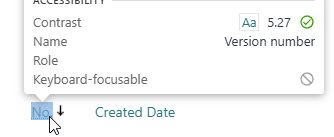
In your developer tool you will now see a link just above the element you just selected - Click to open the link.
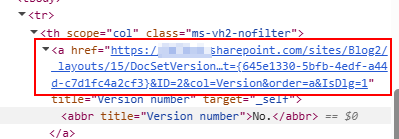
The link will be similar to this
https://yourtenant.sharepoint.com/sites/Blog2/_layouts/15/DocSetVersions.aspx?list={645e1330-5bfb-4edf-a44d-c7d1fc4a2cf3}&ID=2&col=Version&order=a&IsDlg=1
Step 3
Do the following changes to the link
- Replace DocSetVersions with Versions
- Remove &col=Version…..
Your link should now be similar to this
https://yourtenant.sharepoint.com/sites/Blog2/_layouts/15/Versions.aspx?list={645e1330-5bfb-4edf-a44d-c7d1fc4a2cf3}&ID=2
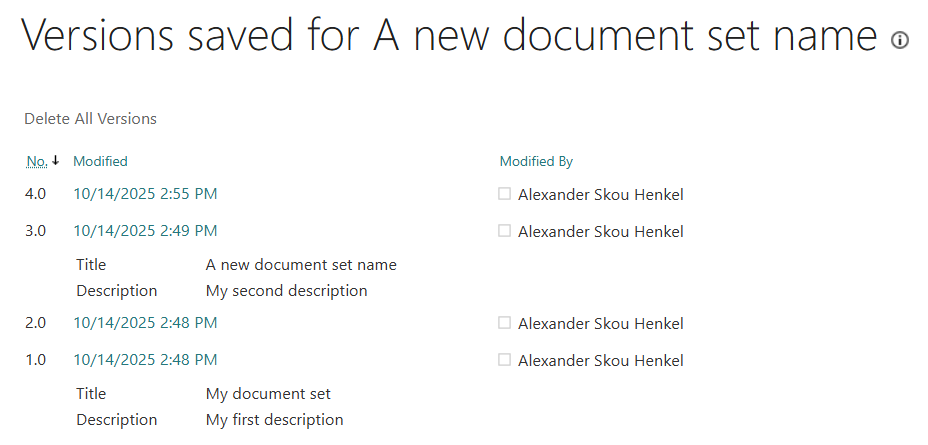
The version history of the Document Set is now available
See also
- Get all Power Automate flows in an environment in a spreadsheet
- Filter and search the termstore in SharePoint with Power Automate
- Show last refresh date in local time on powerbi.com
- Send SharePoint list item attachments by mail using Power Automate
- Create a searchable dictionary with PnP Modern Search in SharePoint