Learn how to remove the whitespace (vertical) from an integrated Power App, added to a tab.
The challenge
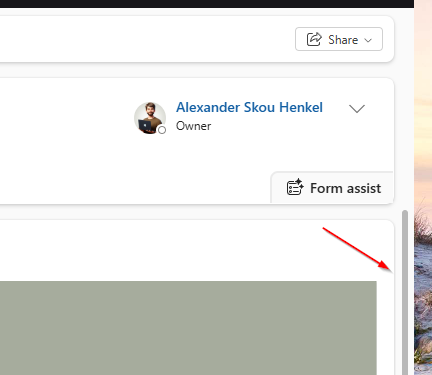
If you add a Power App into a Model-driven app in a tab, you will get whitespace vertically, which creates an unnessecary scrollbar
Solution
We can remove the whitespace by adding a CSS and Javascript file to our solution.
Step 1
Add the following code to your solution (Web resources)
.Canvas\.CanvasControl > div {
  height: 400px !important;
}
This is a CSS file, the height of the section will be 400px.
Step 2
Add another file to your solution (this time it is a Javascript file)
var Example = window.Example || {};
(function () {
  // Change height of element
  this.loadCSS = function () {
    var path = "../WebResources/ahe_sectionHeight";
    var head = window.parent.document.getElementsByTagName("head")[0];
    var link = document.createElement("link");

    link.rel = "stylesheet";
    link.type = "text/css";
    link.href = path;
    link.media = "all";

    window.parent.document.head.appendChild(link);
  };
}).call(Example);
Note that “path” is currently named ahe_sectionHeight, you should change yours.
I now have the following two web resources.

Step 3
In your Model-driven app (on the main form) add an on load event handler.
Add the Javascript file and make sure that the settings are as below screenshot.
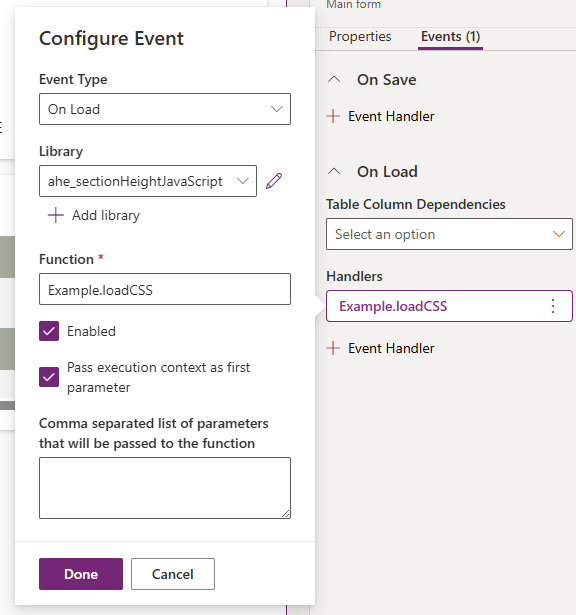
Make sure your function is Example.loadCSS
Step 4
Reload your Model-driven app, and the height of the section is now 400 pixels 🚀

See also
- Filter and search the termstore in SharePoint with Power Automate
- Collect data from multiple SharePoint sites in Power Apps
- Work with multi-choice, multi-lookup & multi-choice-people fields from SharePoint in Power BI
- Create a dialog with user inputs in a Model Driven App
- Copy a file from one library to another with full version history in SharePoint using Power Automate