Learn how to collect data from multiple SharePoint sites in Power Apps using Power Automate
What will we build?
In this blog post we will use Power Automate to collect data from multiple SharePoint sites.
Solution
Step 1
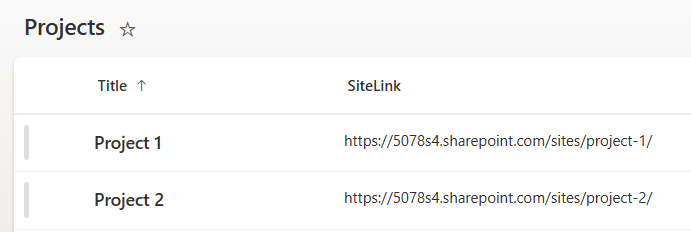
Create a new SharePoint site called Projects
Create a new list with two columns
- Title [Text]
- SiteLink [Text]
This article will not cover site provisioning or the content type hub
Create 2 sites manually and add project name and link to the site to the list.
If you use the content type hub, you can easely add the content types for each site/list.
Step 2
We will create an app that collects tasks for a project
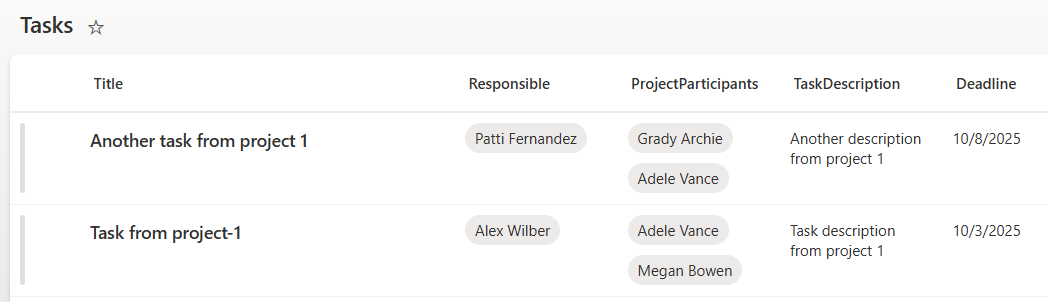
Go ahead and create a new task custom content type with the following columns
- Title [Singe line of text]
- Responsible [Single person]
- ProjectParticipants [Multi person]
- TaskDescription [Multiple lines of text]
- Deadline [Date]
Create a list called Tasks on your sites - Create a couple of tasks on each site
Step 3
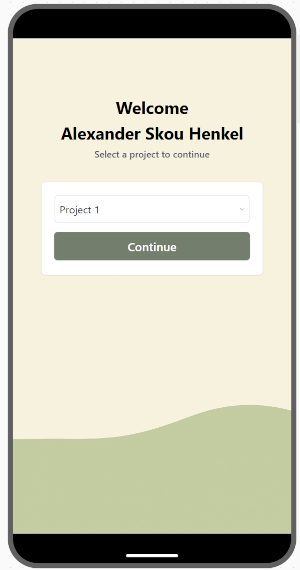
In Power Apps Studio add the site Projects as a datasource -> This will be be our only hardcoded datasource.
Create a dropdown item, and add Projects in items
Step 4
Create a new Power Automate flow and name it Projects - Collect tasks
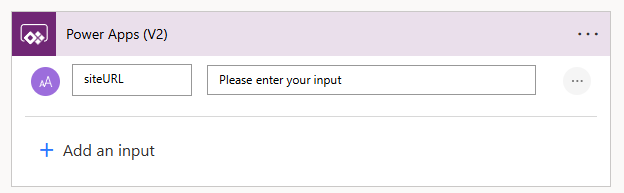
In the Power Apps (V2) action add a text input named siteURL
Step 5
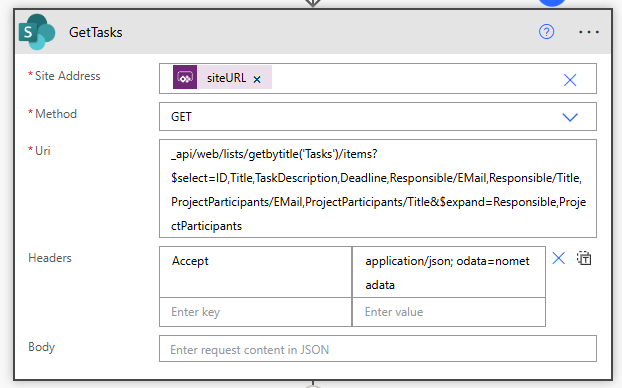
Create an Send an HTTP request to SharePoint action and rename it GetTasks
In site address insert siteURL (from our first action).
-
Method
**GET** -
Headers
Acceptandapplication/json; odata=nometadata -
Uri
_api/web/lists/getbytitle('Tasks')/items?$select=ID,Title,TaskDescription,Deadline,Responsible/EMail,Responsible/Title,ProjectParticipants/EMail,ProjectParticipants/Title&$expand=Responsible,ProjectParticipants
What does Uri do?
We are getting items from the list called Tasks
_api/web/lists/getbytitle('Tasks')/items
Then select specific columns
?$select=ID,Title,TaskDescription,Deadline,Responsible/EMail,Responsible/Title
Notice how we are selecting the Email and Title from both Reponsible and ProjectParticipants
Responsible/EMail,Responsible/Title,ProjectParticipants/EMail,ProjectParticipants/Title
and that we are expanding those columns
&$expand=Responsible,ProjectParticipants
Step 6
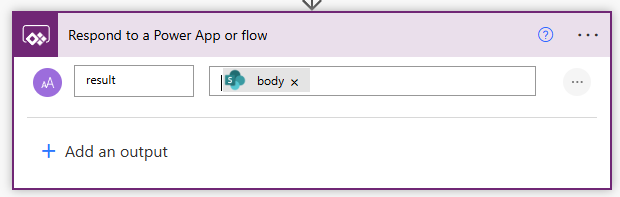
Create an Respond to a Power App or flow action.
Insert a text input and name it result
The output is body from our GetTasks action.
Save your flow and go back to Power Apps Studio
Step 7
To collect the project tasks we will use the formulas option. We will do this in case we need to run the flow in other parts of the app.
Insert the following in formulas (it is available under App)
collectProjectTasks(siteURL: Text): Void = {
    ClearCollect(
        colTasks,
        ForAll(
            ParseJSON(
                'Projects-Collecttasks'.Run(siteURL).result
            ).value,
            {
                ID: Value(ThisRecord.ID),
                Title: Text(ThisRecord.Title),
                TaskDescription: Text(ThisRecord.TaskDescription),
                Deadline: DateTimeValue(ThisRecord.Deadline),
                Responsible: Text(ThisRecord.Responsible.Title),
                DeadlineFormatted: Text(DateTimeValue(ThisRecord.Deadline), "dd-mm-yyyy"),
                ProjectParticipants: ForAll(
                    ThisRecord.ProjectParticipants,
                    {
                        Name: Text(ThisRecord.Title),
                        Email: Text(ThisRecord.EMail)
                    }
                )
            }
        )
    )
};
We have now created a function called collectProjectTasks that takes one input (siteURL)
Step 8
To run our new function we will add the following Power Fx to OnSelect on our Continue button.
collectProjectTasks(DropdownSelectProject.Selected.SiteLink)
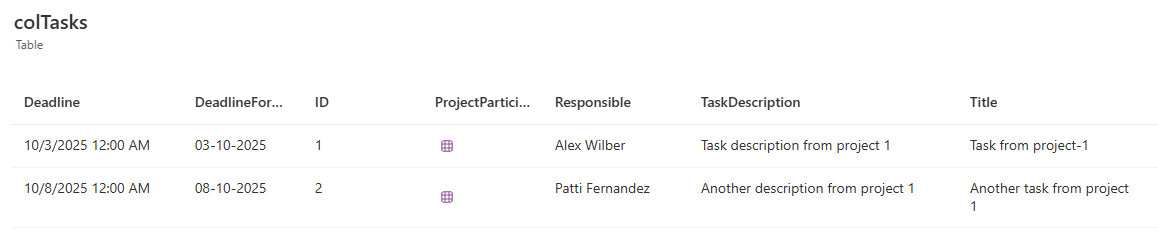
For my Continue button I will also set a variable for the selected projects Title and SiteLink because I know I am going to need it further on
This is what I have in my OnSelect
collectProjectTasks(DropdownSelectProject.Selected.SiteLink);

Set(
    varSelectedProject,
    LookUp(
        ShowColumns(Projects, ID, Title, SiteLink),
        ID = DropdownSelectProject.Selected.ID
    )
);

Navigate(scr_tasks)
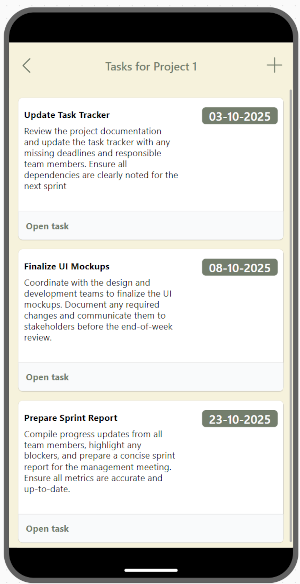
Now that we have all the tasks in a collection, we can show the tasks in a gallery view, like below
See also
- Remove whitespace from an integrated Power App in a tab
- Get all Power Automate flows in an environment in a spreadsheet
- Filter and search the termstore in SharePoint with Power Automate
- This operation contains a token that does not exist in the current workflow.
- Work with multi-choice, multi-lookup & multi-choice-people fields from SharePoint in Power BI