Learn how to avoid unnecessary loops when using a filtered get items action
When you use the Get Items action with a filter, there are often situations where you know you’ll end up with only a single item.
The thing is that the item will be stored in an array, meaning that when you use any of the properties from that “single” item, Power Automate will automatically insert a loop.
Example
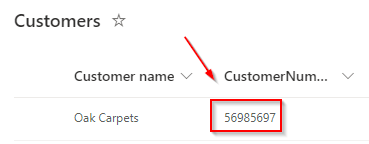
Here we are using get items and we are filtering from a customer list, on the specific customer number
This is my customer list
This is the Power Automate action
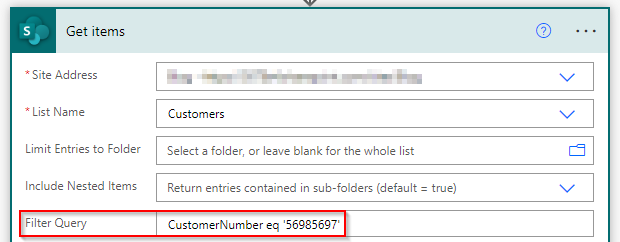
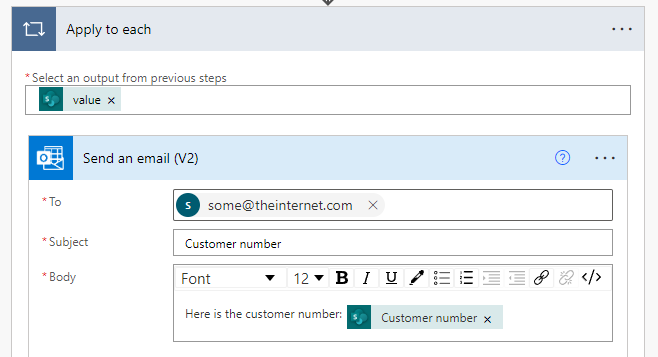
We know that we will only get one item returned - but what happens if we want to send an e-mail with the customer number?
Power Automate inserts a loop, because in theory our get items would have more than one item
How to avoid the loop
We know that we only have one item in our array, so let’s write an expression to get a specific value from that item.
Looking at the output from our get items action, we can see that the item is in
body -> value -> 0 -> CustomerNumber
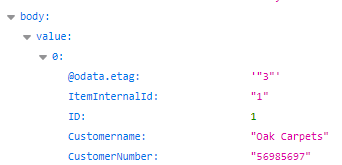
Instead of inserting customer number from dynamic content, use following the expression
outputs('Get_items')['body/value']?[0]?['CustomerNumber']
The expression explained
We are getting outputs from Get items and then body -> value, and if there is an item ? we are getting the first value [0], and if there is an item ? we are getting the value from CustomerNumber
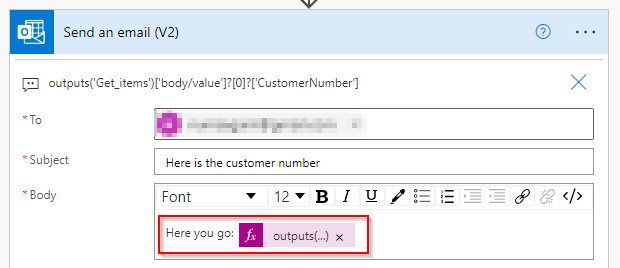
In Power Automate we can now replace the dynamic content with the expression from above, and avoid the loop (either, delete the loop and insert the action again, or remove the dynamic content from your email body, and “drag” the email action out of the loop - and then delete the loop)
Your action should now look like this
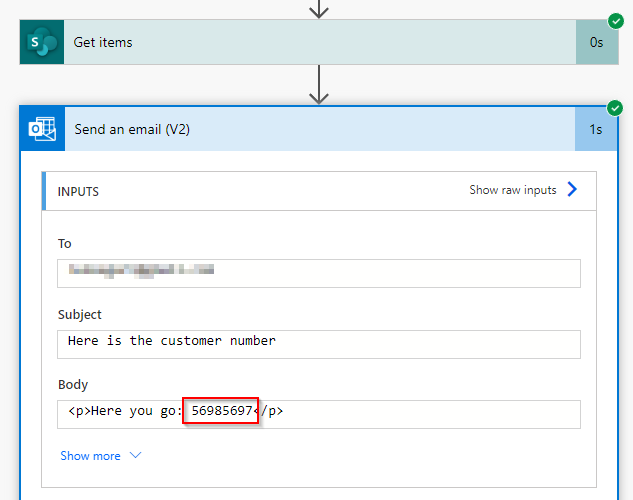
After running the flow, your output should now look like this
Getting all values from the first item
This expression/trick is good to use, if you only need 1 or 2 values, but it takes a bit longer to write these expressions, instead of using the dynamic content
Since we now know how to get a specific value from our Get items we can also get the ID.
Insert a Get item action (a single item, not Get items) and in the Id property insert the following code
outputs('Get_items')['body/value']?[0]?['ID']
This will return a single item, and now we can work with all of the values in the dynamic content, and avoid loops
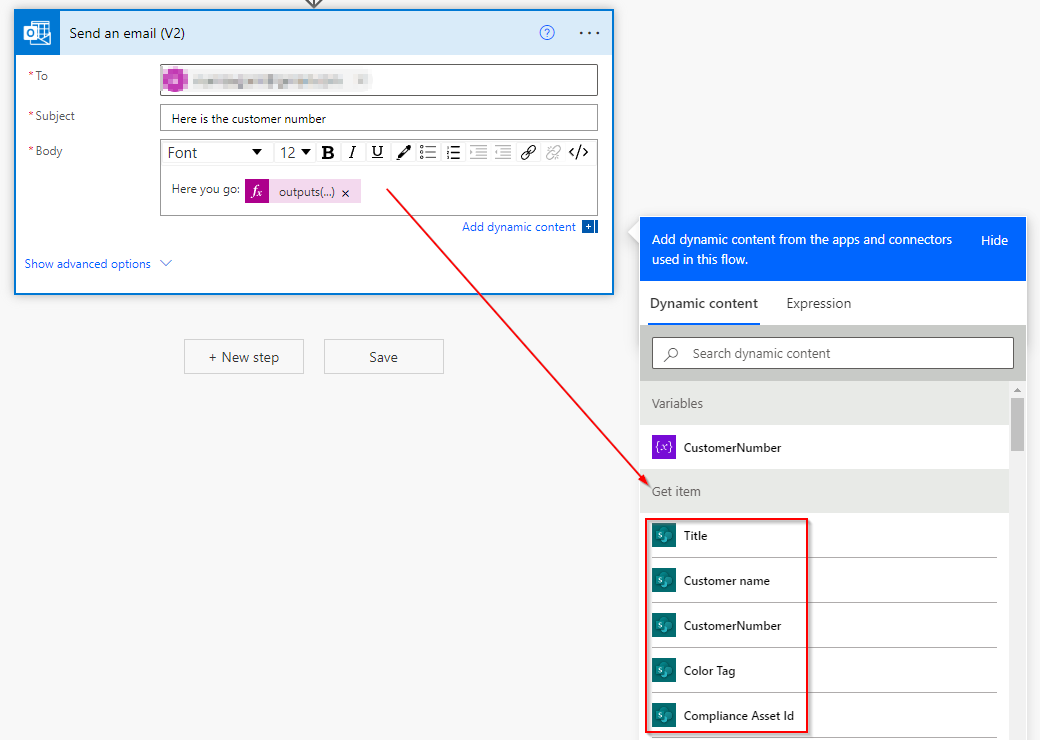
There you go, you now know how to avoid a loop when it is not needed, and your flows will be much more readable in the future
See also
- Get all Power Automate flows in an environment in a spreadsheet
- Filter and search the termstore in SharePoint with Power Automate
- This operation contains a token that does not exist in the current workflow.
- Show last refresh date in local time on powerbi.com
- Get SharePoint Document Set version history