Learn how to extract values from a multi choice column in SharePoint, and avoid loops in Power Automate
The challenge
If you want to sent some details from a multi choice column in an email or an approval flow, Power Automate will create a loop since the value is an array
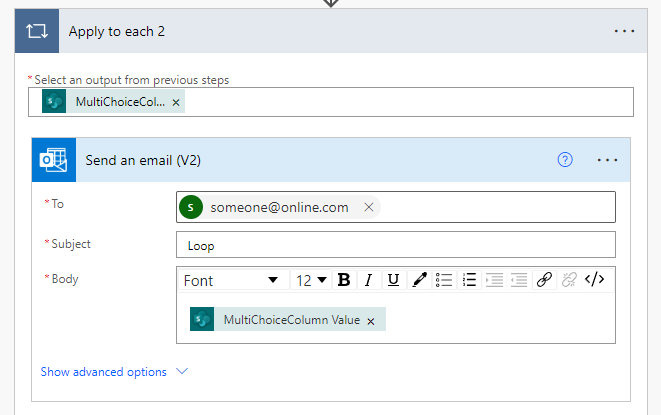
Here is how to avoid that
Step 1
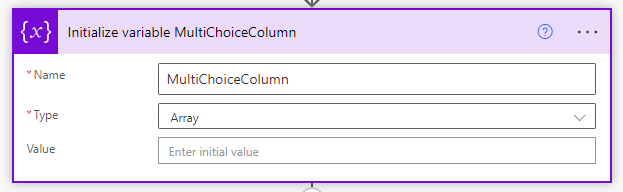
Initialize a new Array variable (I have called mine MultiChoiceColumn)
Step 2
Create an Append to array variable action and in Value insert your ColumnName Value
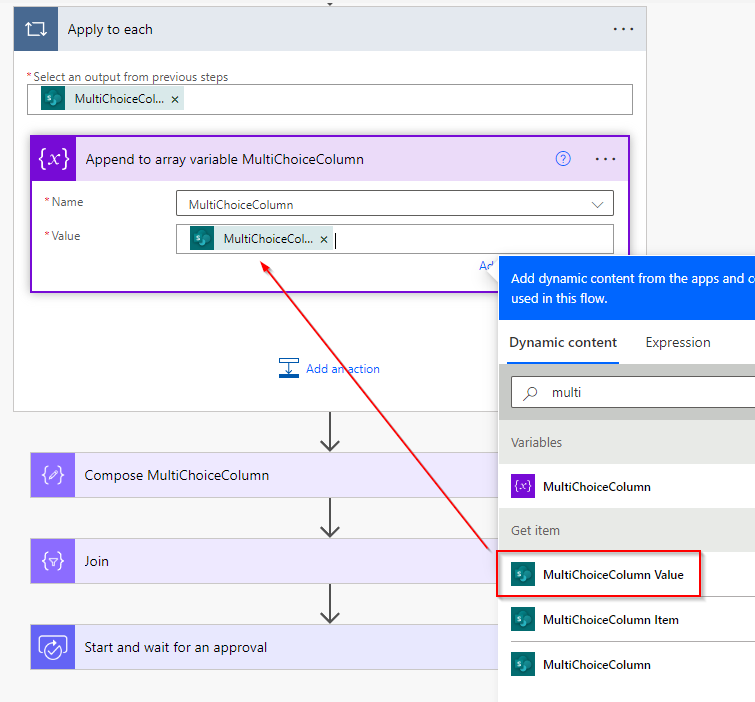
Power Automate will automatically create a loop. This is fine, keep the loop
Step 3
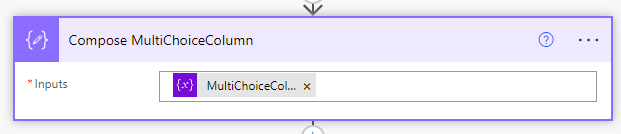
Outside the loop create a Compose action and in Inputs insert the Array value you created in the first step
Step 4
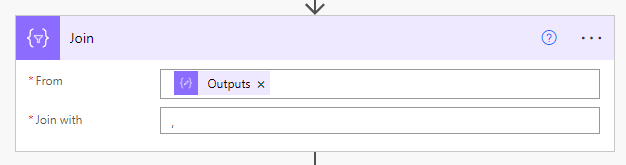
Create a new Join action.
From should be Outputs from your Compose action and in Join with insert a comma and a space
Step 5
In your e-mail you can now insert the output from your Join action
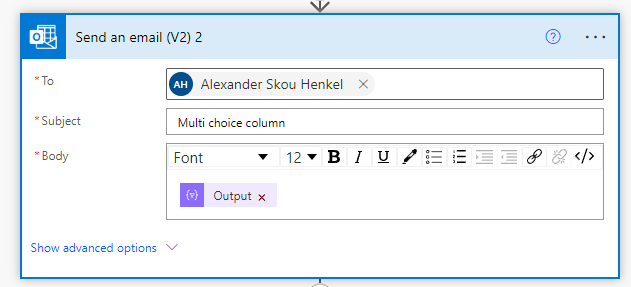
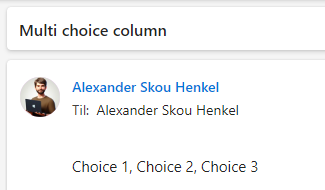
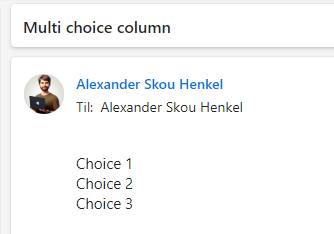
Your e-mail should now look like this
If you don’t want your choices to be in a single string, your can replace the comma and space with <br> to create a line break
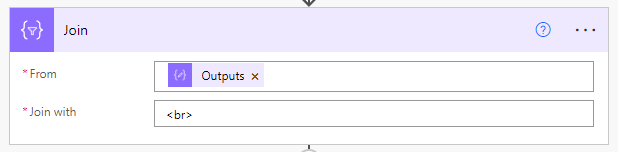
Your e-mail should now look like this
Approval flow
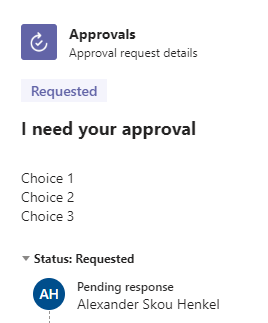
We can’t use <br> to create line breaks in an approval flow, it would look like this
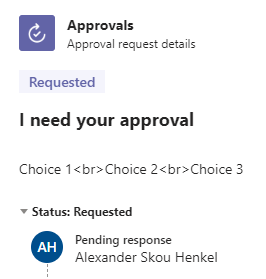
Here is how to create a line break for approval flows
Step 1
Initialize a new string variable and in the value press enter once (it looks blank, but the string now holds an enter value)
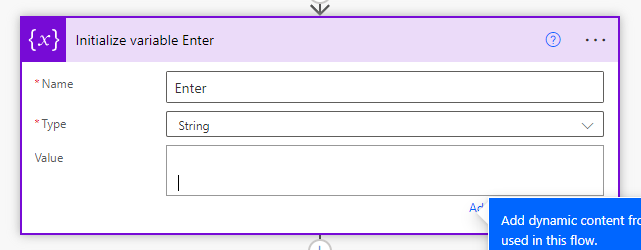
Step 2
Insert the variable in the Join with
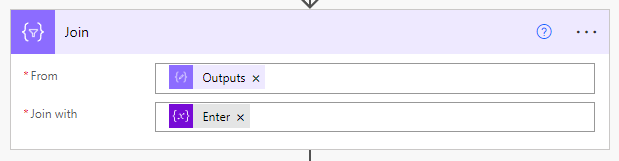
Step 3
Insert the Outputs from your join action in the Details option
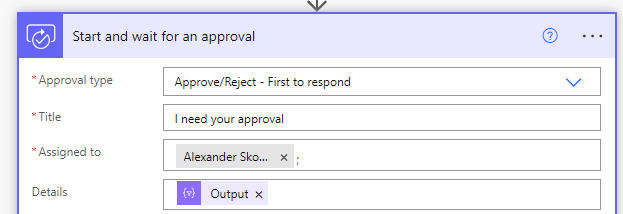
Your approval flow should now look like this
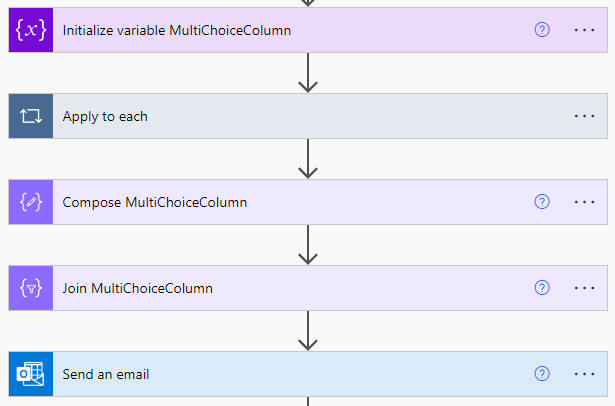
Here is the entire flow
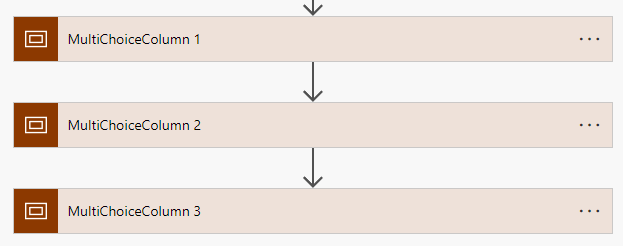
If you have several choice columns, it would be best practice to use scopes (it would also be best practice to use a scope if you have only 1 column)
See also
- Get all Power Automate flows in an environment in a spreadsheet
- Filter and search the termstore in SharePoint with Power Automate
- This operation contains a token that does not exist in the current workflow.
- Show last refresh date in local time on powerbi.com
- Get SharePoint Document Set version history